How to Fix the DNS_PROBE_FINISHED_NXDOMAIN Error
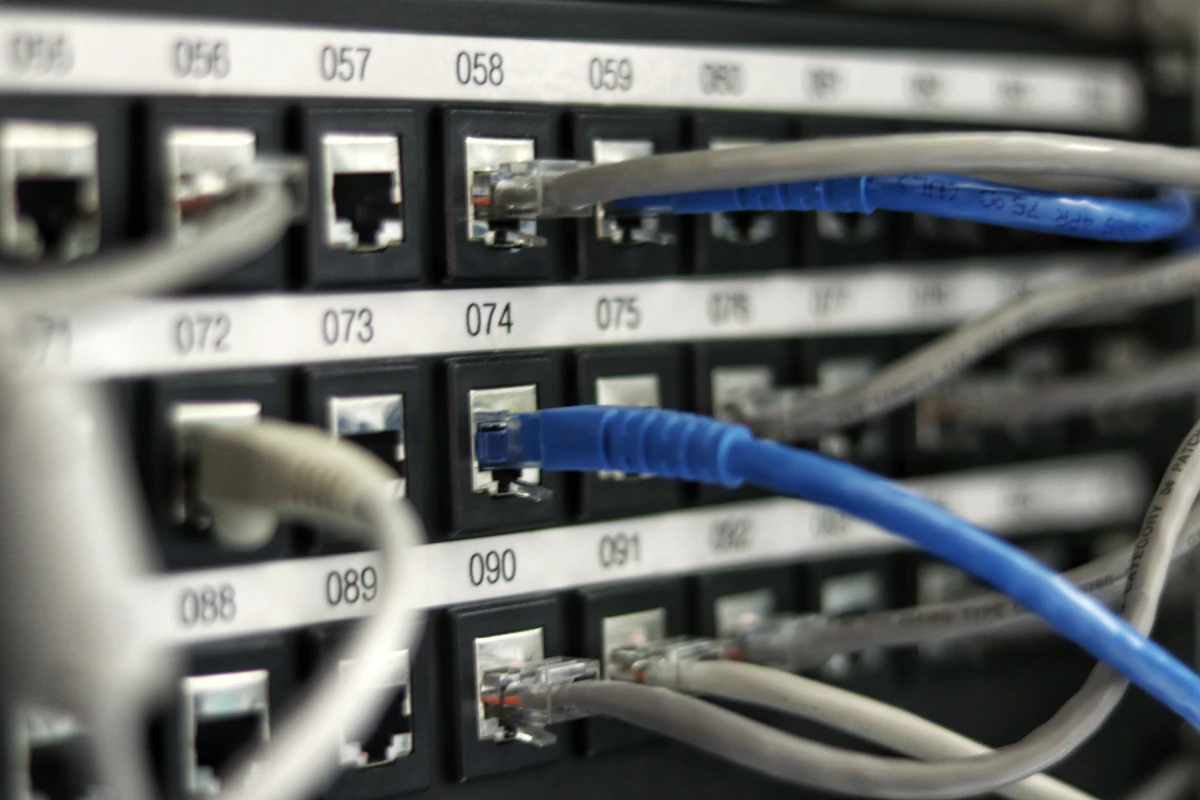
This error occurs when the web browser is unable to find the DNS server of a website.
High-Speed USB 3.0 Flash Drive
Required tool to fix the issue described above.
The DNS_PROBE_FINISHED_NXDOMAIN Error
The DNS_PROBE_FINISHED_NXDOMAIN error is a common issue that internet users encounter when trying to access a website. This error is often related to system configuration or internet connection problems.
What is the DNS_PROBE_FINISHED_NXDOMAIN Error?
The DNS_PROBE_FINISHED_NXDOMAIN error occurs when the web browser attempts to access a website using the Domain Name System (DNS). When you enter a website’s address in your browser, it sends a request to the DNS server to obtain the corresponding IP address. If the DNS server is unable to find the DNS record for the website in question, it returns an NXDOMAIN error, which is then interpreted by the browser as a DNS_PROBE_FINISHED_NXDOMAIN error.
Checking DNS Configuration
Check that your computer’s DNS configuration is correct. You can do this by following these steps:
- Open the Windows Control Panel.
- Click on “Network and Internet”.
- Click on “Network and Sharing Center”.
- Click on “Change adapter settings”.
- Select your internet connection and click on “Properties”.
- Select “Internet Protocol Version 4 (TCP/IPv4)” and click on “Properties”.
- Ensure that the “Obtain an IP address automatically” option is selected.
Clearing the DNS Cache
The DNS cache can sometimes cause domain name resolution problems. You can clear the DNS cache by following these steps:
- Open the Command Prompt as an administrator.
- Type the command “ipconfig /flushdns” and press Enter.
- Restart your computer for the changes to take effect.
FAQ
What is a DNS Server?
A DNS (Domain Name System) server is a server that translates domain names into IP addresses. When you enter a website’s address in your browser, the DNS server is responsible for finding the DNS record for the website in question and returning the corresponding IP address.
How Can I Change My DNS Server?
You can change your DNS server by following these steps:
- Open the Windows Control Panel.
- Click on “Network and Internet”.
- Click on “Network and Sharing Center”.
- Click on “Change adapter settings”.
- Select your internet connection and click on “Properties”.
- Select “Internet Protocol Version 4 (TCP/IPv4)” and click on “Properties”.
- Select the “Use the following DNS server addresses” option and enter the IP addresses of the DNS servers you want to use.
Conclusion
By following these steps, you should be able to fix the DNS_PROBE_FINISHED_NXDOMAIN error and regain access to the websites you are trying to visit. If the problem persists, it is possible that the issue is related to your internet service provider or network configuration.